How To Raise a Ticket
Prerequisites:
- Subscribed to the GreyCube Support Portal.
- Login credentials (User ID and Password) have been shared with you.
Follow these steps to raise a ticket:
- Open a web browser and navigate to the Greycube Support
Portal: GreyCube Support Portal - Log In: Use the provided login credentials to access the site.
- Click on "Create."

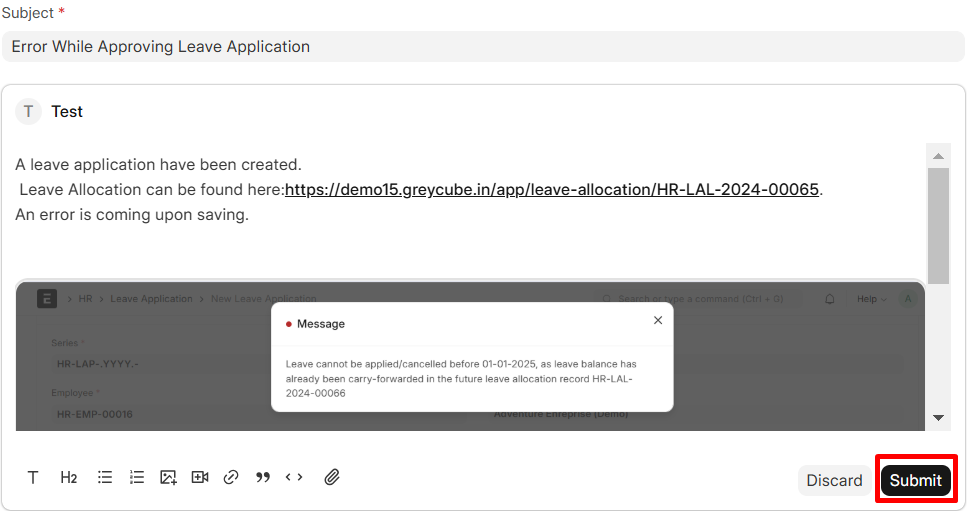
- Provide a Clear Subject. Ensure the subject is concise and specific to the issue.
Example: Unable to access the dashboard after login - Write Your Query with description.
- Click on Submit.
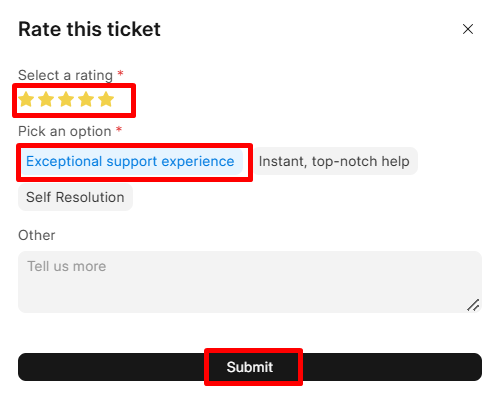
- When the issue is resolved, please close the ticket and provide us with a positive rating and feedback.
Tips for Writing Queries for Quick Resolution
- Provide Clear and Detailed Descriptions.Explain the issue step-by-step and mention any error messages or irregularities.
- Attach Relevant Documents or Screenshots.
- Include the URL of document web address Related to the Query.
- If an error occurs, include a screenshot showing the error message or behavior.
Capture Additional Error Details
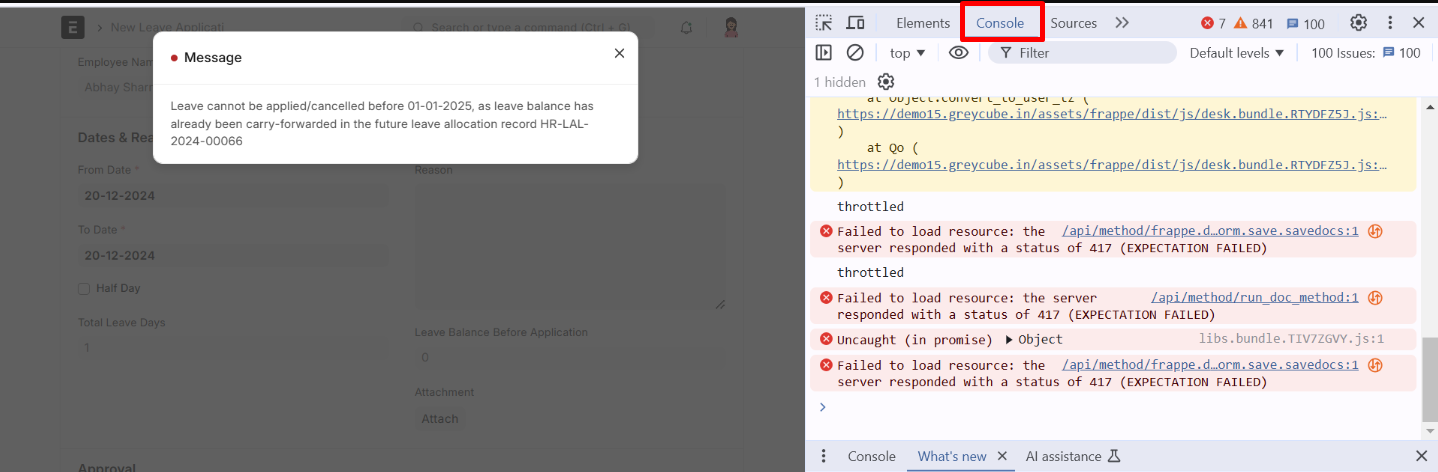
- For more technical issues:
- Windows users: Press F12 to open developer tools.
- Mac users: Use ⌘ + ⌥ + I for the same purpose.
- Take screenshots of the console or error logs displayed.
By following these tips, you can help the support team address your issue more effectively and resolve it promptly.
- For more technical issues:
Tracking Ticket Status
Go to Tickets.
- Check comments or updates from the support team.
- Add follow-up comments or responses if needed.
How To Close The Ticket
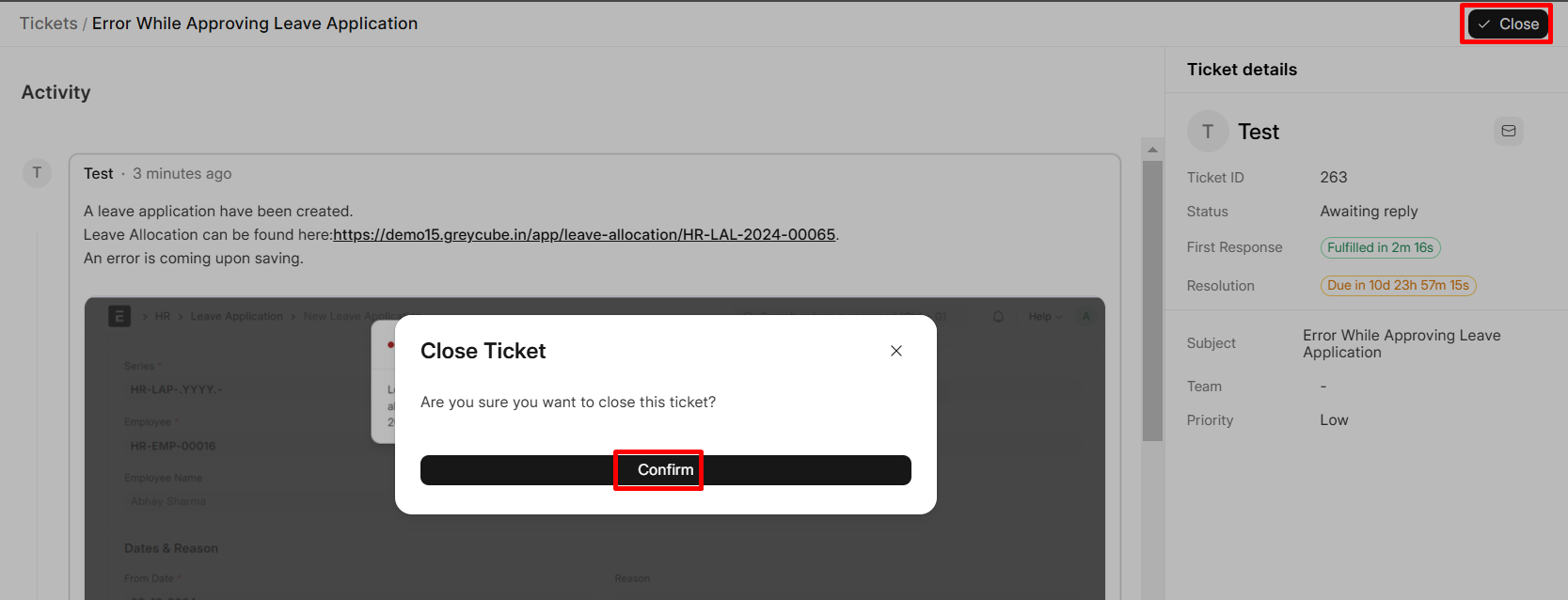
- Go to the ticket.
- Click "Close."
- Click "Confirm."
How to Give Feedback:
- Click on the "Close" button.
- A pop-up will appear.
- Select the rating stars.
- Choose a word option in the pop-up.
- If you would like to provide additional feedback, kindly write in the "Other" text box.
- Click "Submit."