View
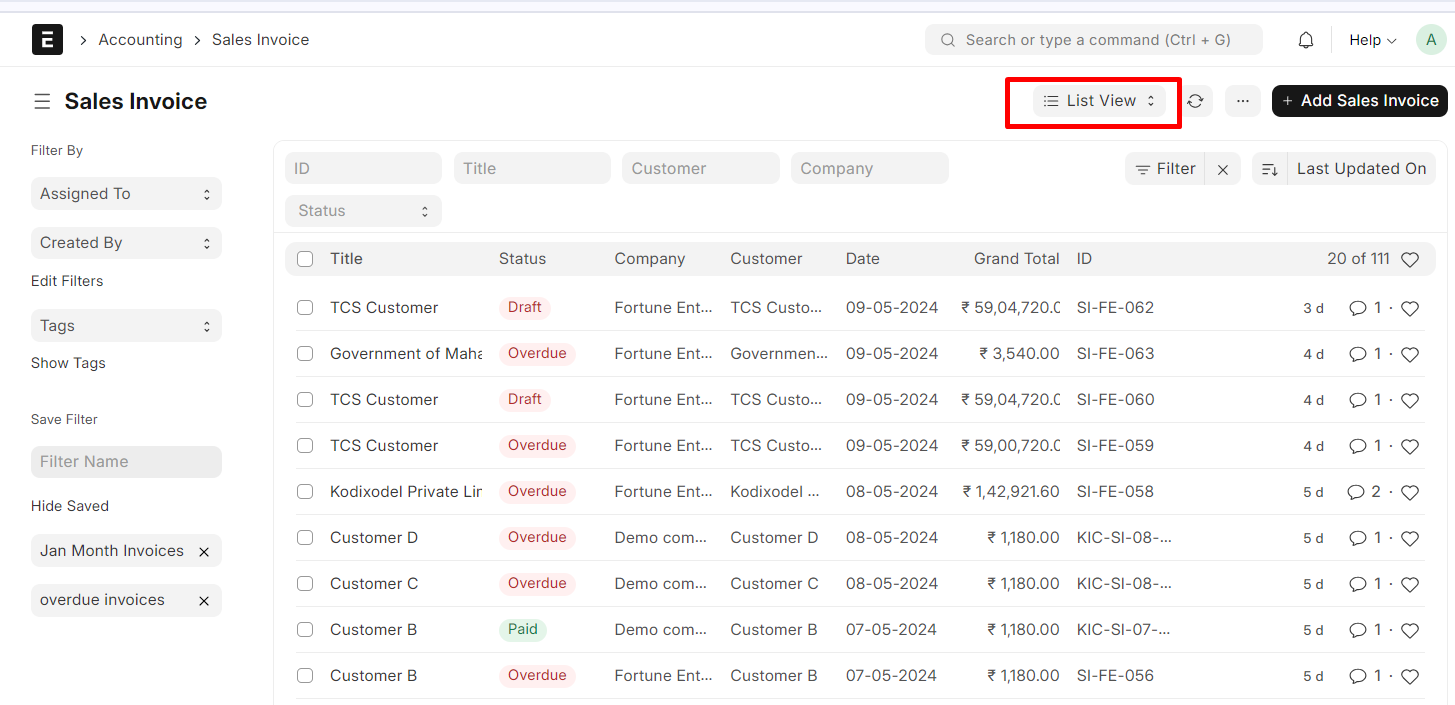
1. List View
The list view is a powerful feature that allows you to efficiently manage and interact with data in various doctypes. Here are the key steps and functionalities:
Accessing the List View:
To access the List View, follow these steps:
- Go to: Home > Stock > Items and Pricing > Item1.
- This will take you to the List View for the “Item” doctype.
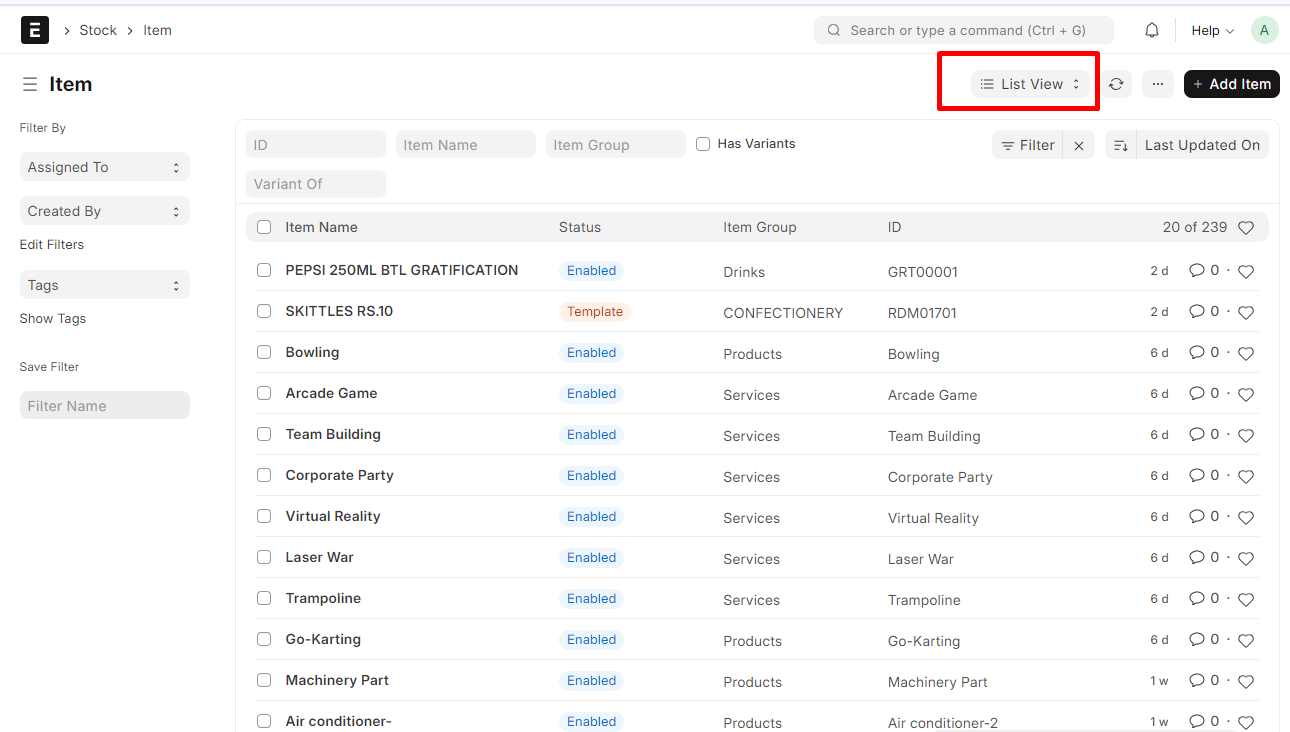
Viewing Data:
- In the List View, you’ll see the top 20 records with selected columns for the specific doctype.
- If you want to see more records, you can click on the “100,” “500,” or “load more” button.
- By default, data is sorted based on the last updated date.
Sorting Data:
- You can change the sorting order by clicking on the “Last Updated On” column.
- For example, clicking on the date field will sort the data by the date field of invoices.
- You can also choose ascending or descending order using the buttons next to the sorting option.
Filtering Data:
- Standard filters are visible at the top of the List View.
- To filter based on any field of the doctype, click on the filter button and select the desired field.
- Choose from various filtering options such as equals, not equals, like, and not like.
- If you frequently use a specific set of filters, you can save them by providing an appropriate name in the “Save Filter” box and pressing Enter.
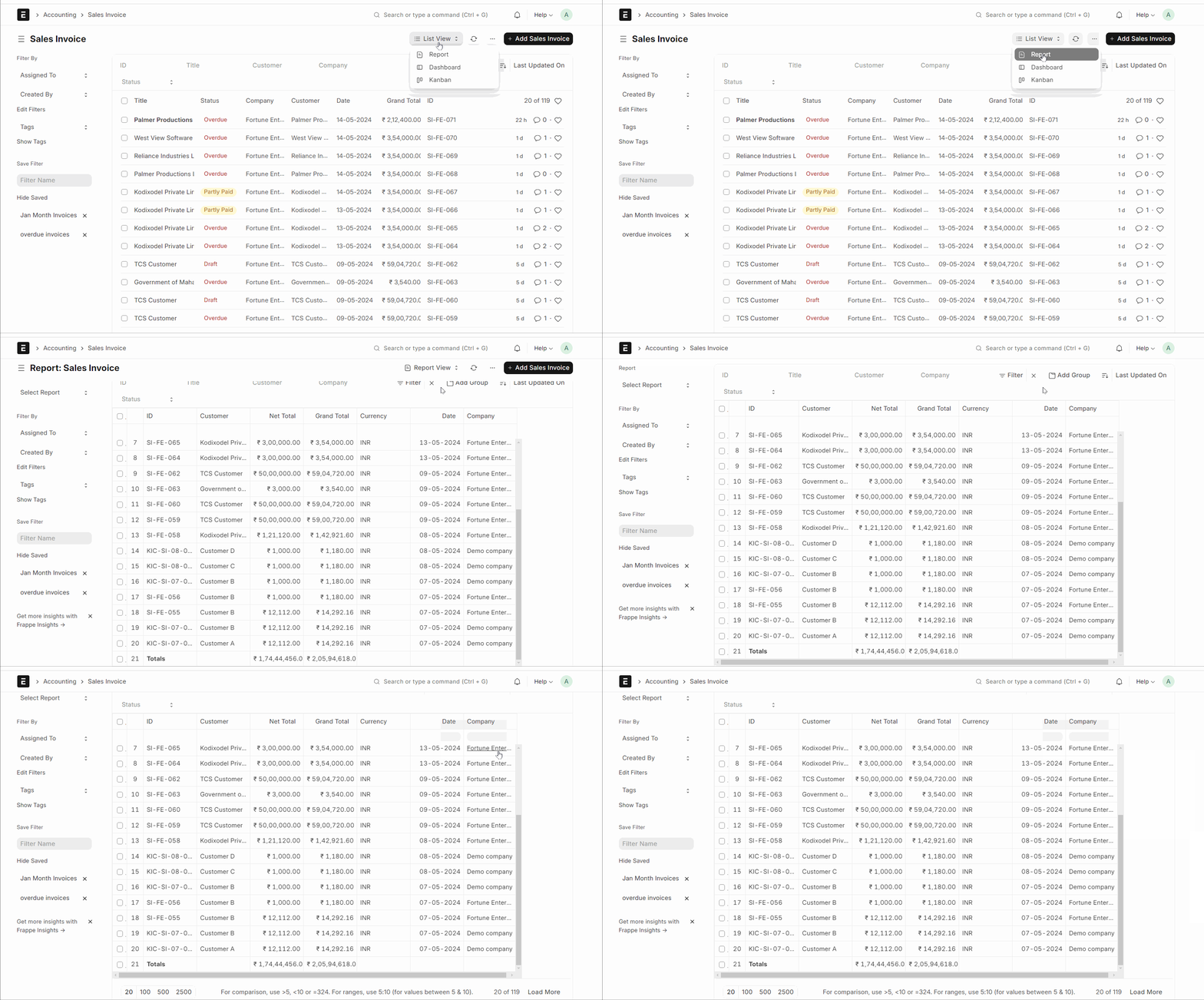
2. Report Viewawsom
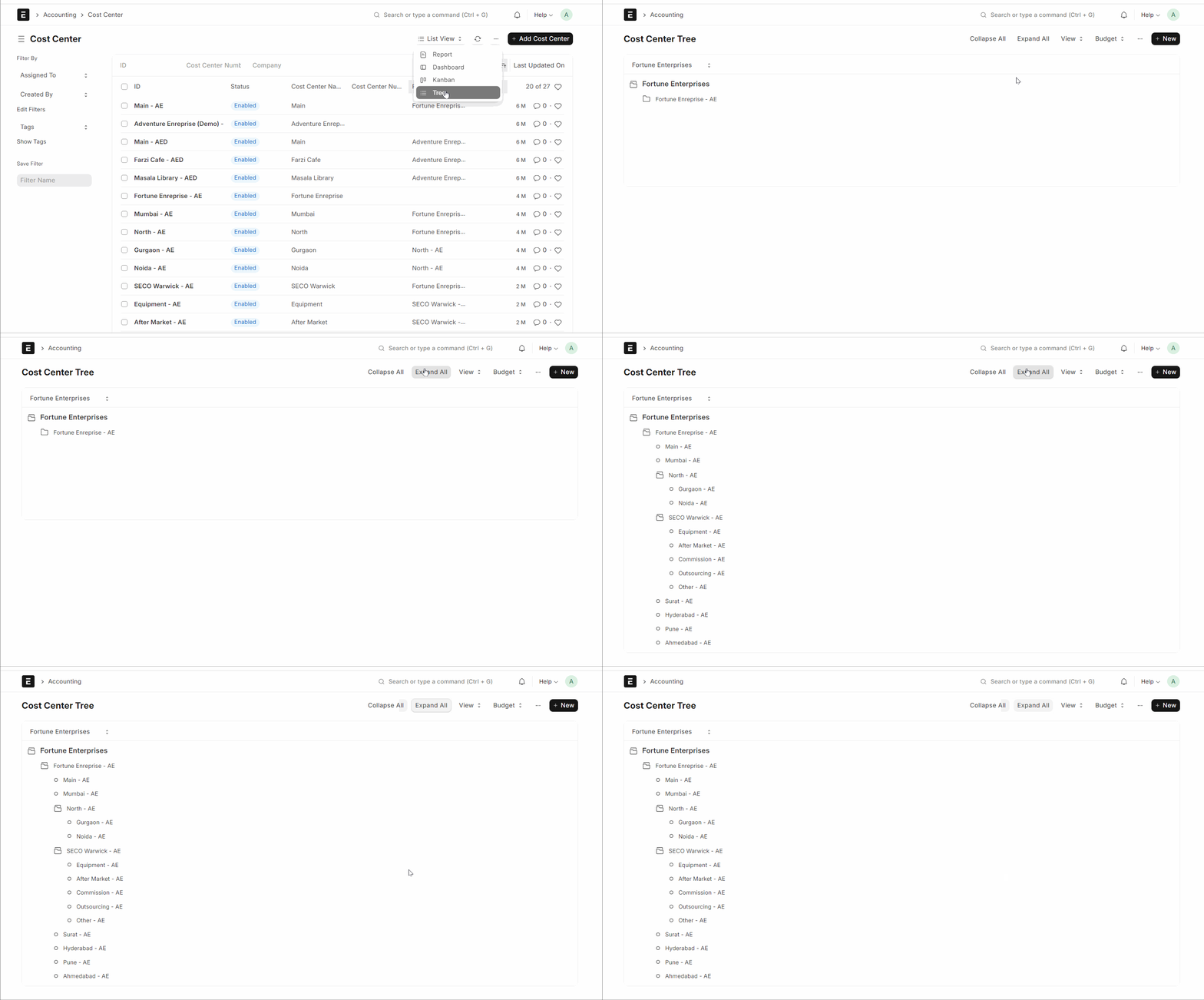
3. Tree Viewawsom
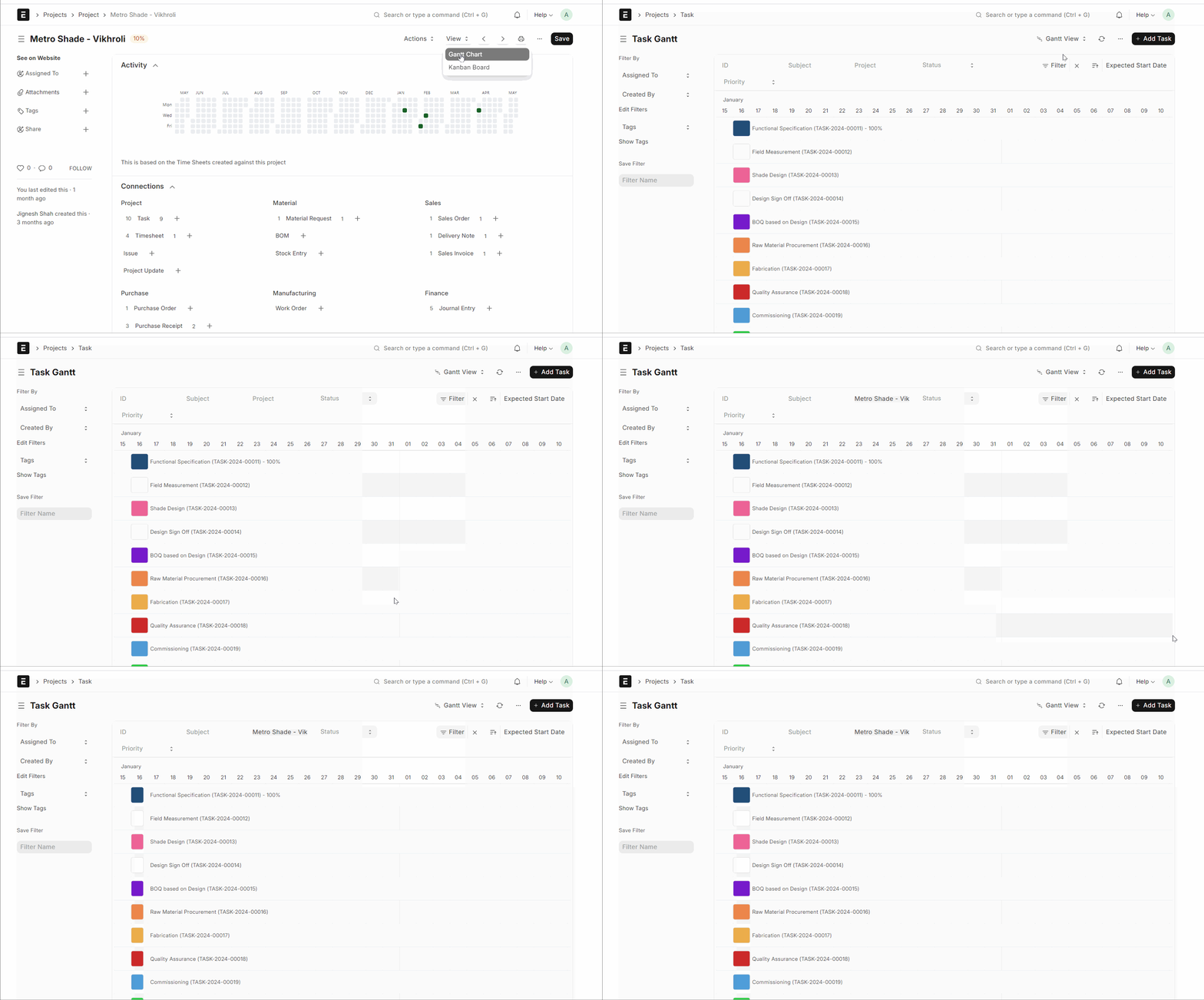
4. Gantt View