UOM
⚖️ Unit of Measurement (UOM) Conversion in ERPNext ERPNext allows you to work with multiple units of measurement for the same item. This is useful when your business deals with items in different units — for example, buying in Kilograms (Kg) and selling in Numbers (Nos).
To make this work, ERPNext uses something called a UOm & Conversion Factor, which tells the system how to convert one unit into another automatically during transactions like purchase, sales, or stock movement.
🔁 Case 1: Default UOM is Kg, but you want to transact in Nos Suppose your item is stocked in Kg (Kilograms), but you want to sell or purchase it in Nos (pieces). In this case, you need to define how many Nos are equivalent to 1 Kg.
✅ Example: Let’s say:
1 Kg = 10 Nos
Then to calculate how many nos are there in 1 Kg:
1 ÷ 10 = 0.1 Kg per No
This means every piece (1 No) weighs 0.1 Kg.
🔧 How to Set This Up in ERPNext: Go to the Item master where this product is defined.
Scroll down to the UOMs section.
Since Kg is your default UOM, click Add Row and select Nos.
In the Conversion Factor field, enter 0.1 (This means 1 Nos = 0.1 Kg)
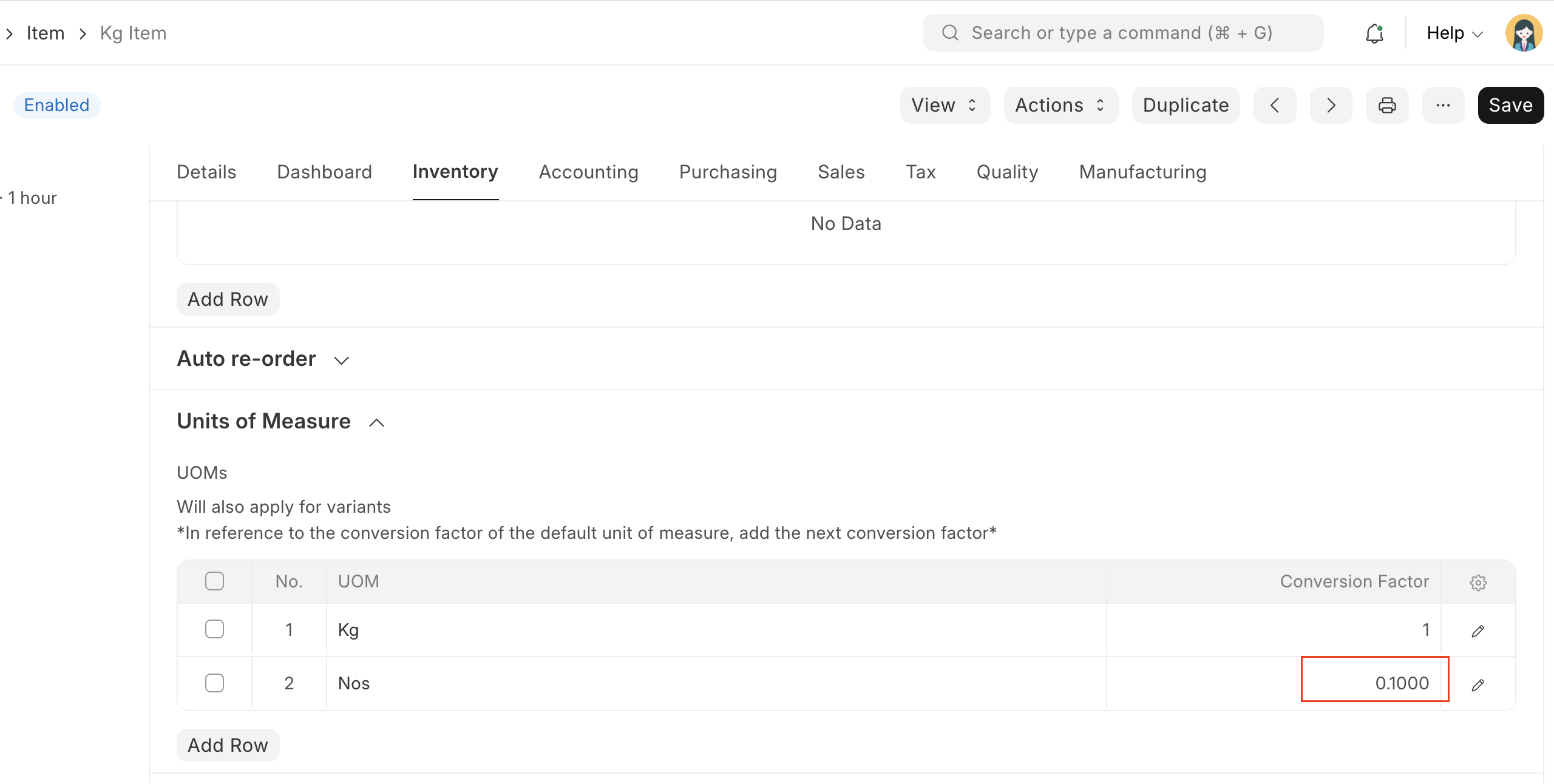
💡 What Happens Now? When you enter a purchase order for 10 Nos, ERPNext will automatically calculate and show it as:
10 Nos = 1 Kg
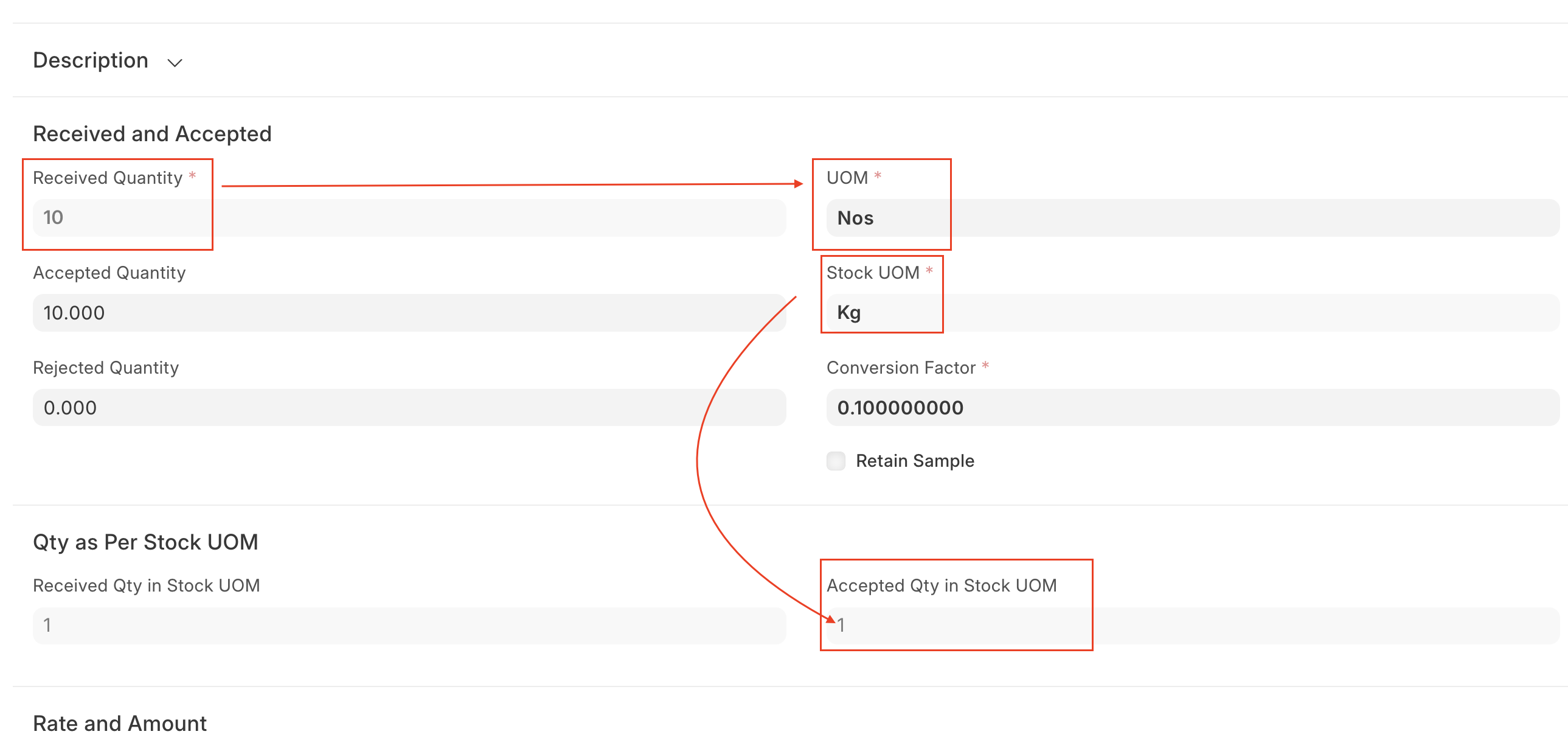
This ensures your stock and valuation remain consistent across all UOMs.
In the Stock Ledger you can see the stock in all set UOMs👇
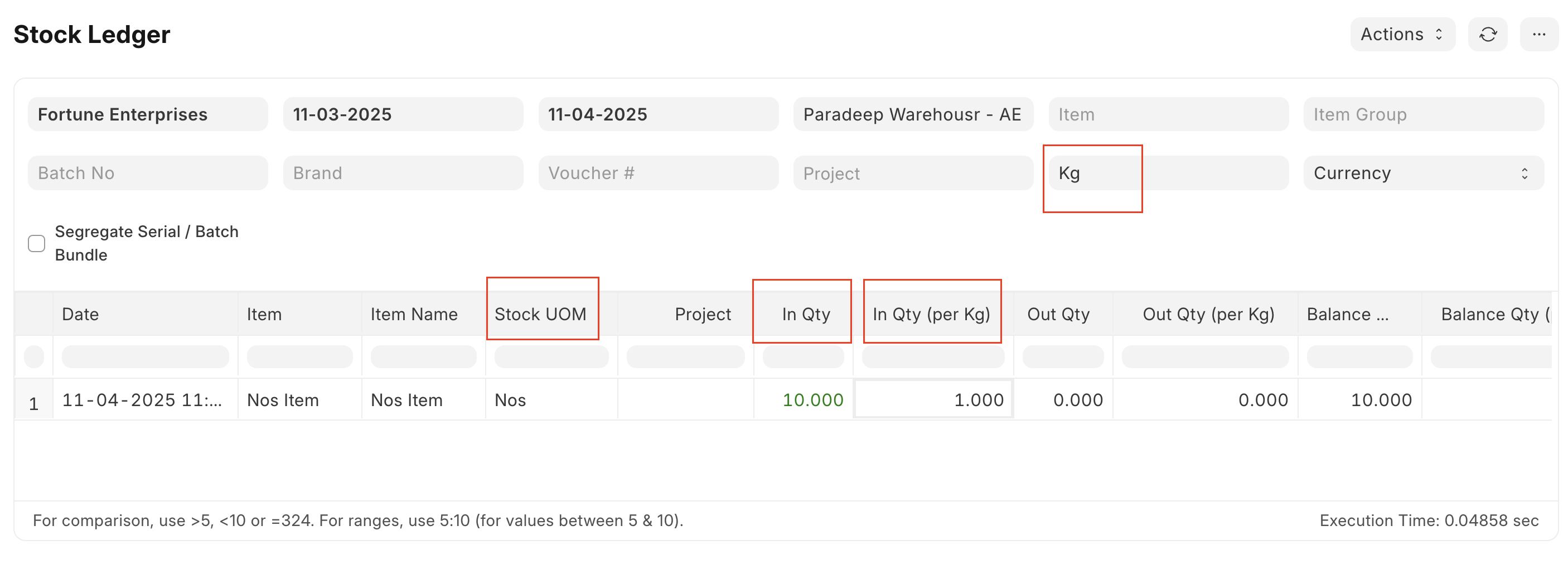
🔁 Case 2: Default UOM is Nos, but you want to see or buy in Kg In some cases, your item might be tracked in Nos, but you may want to order or manage it in Kg.
✅ Example: Let’s assume:
1 Nos = 10 Kg
This means one piece weighs 10 Kg. So your conversion factor would be as below:
To calculate how many Kg are there in 1 No:
1 ÷ 10 = 0.1 Kg per No
This means every piece (1 No) weighs 0.1 Kg.
🔧 Steps to Configure: Open the Item.
Scroll to the UOMs section.
Default UOM is nos here, so click Add Row and select kg.
In the Conversion Factor, enter 0.10 (This means 1 Nos = 10 Kg)
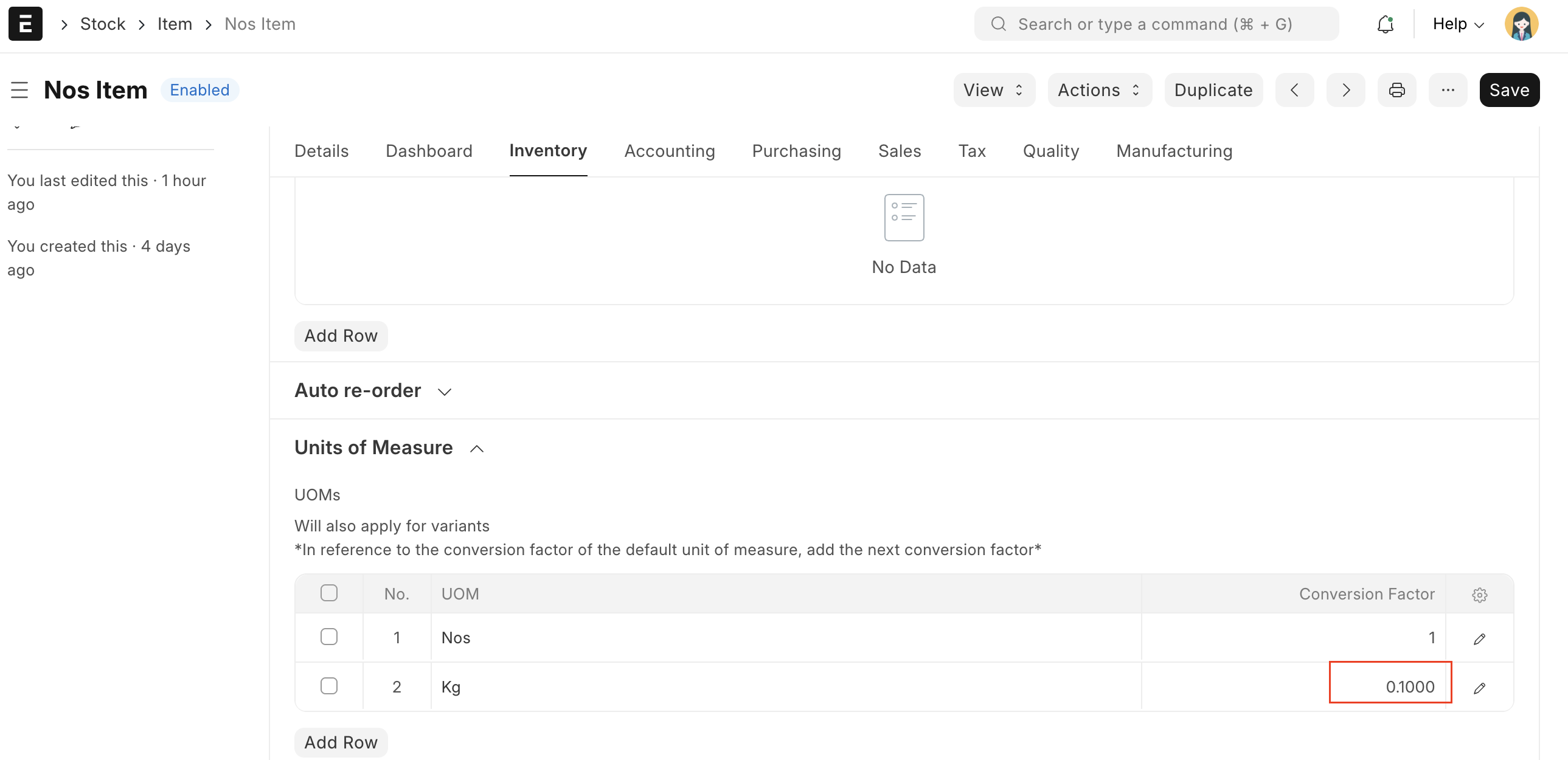
💡 Outcome: When you enter a purchase for 1 Kg, ERPNext will convert it like this:
1 kg = 10 nos
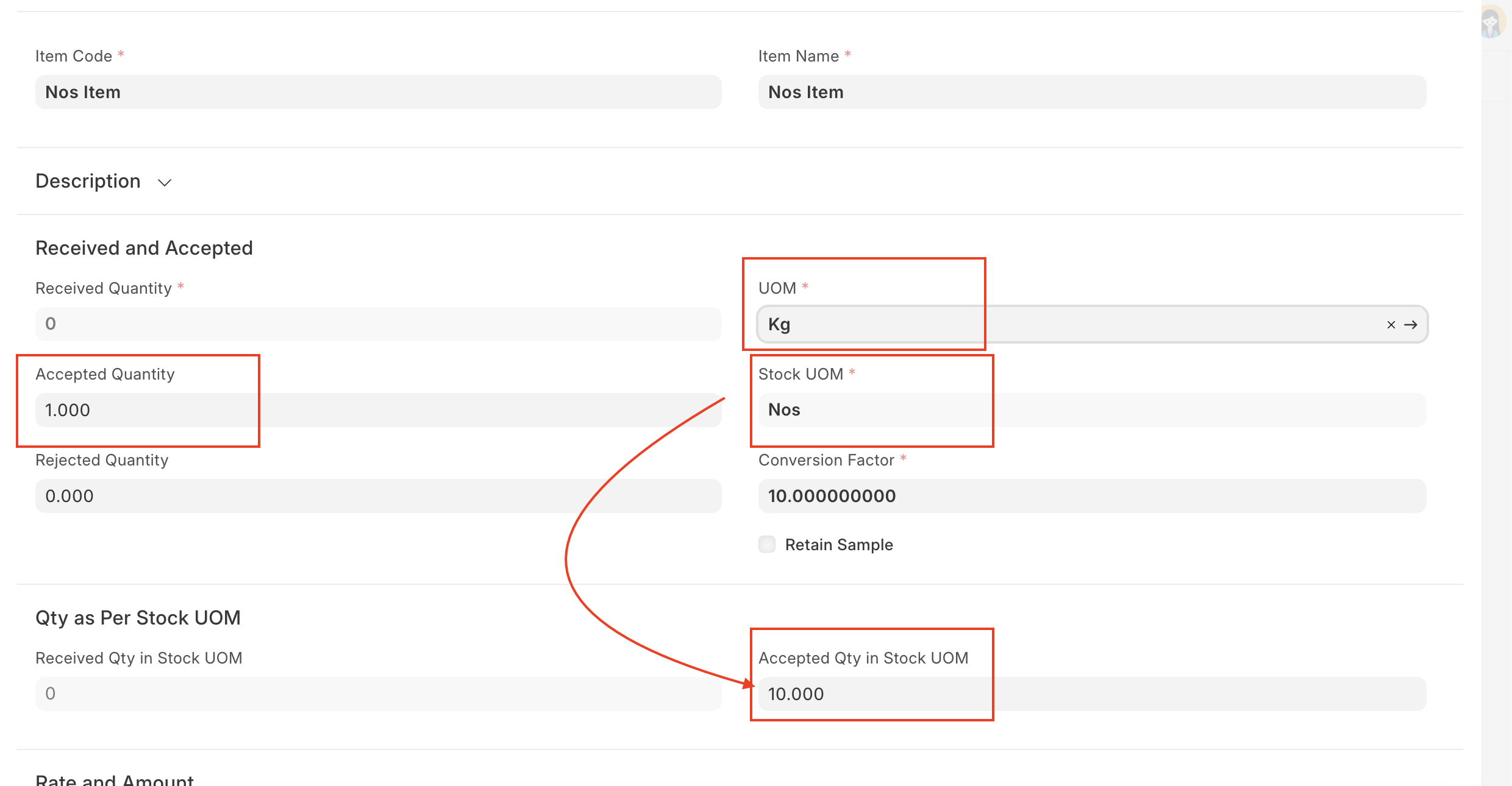
In the Stock Ledger you can see the stock in all set UOMs👇
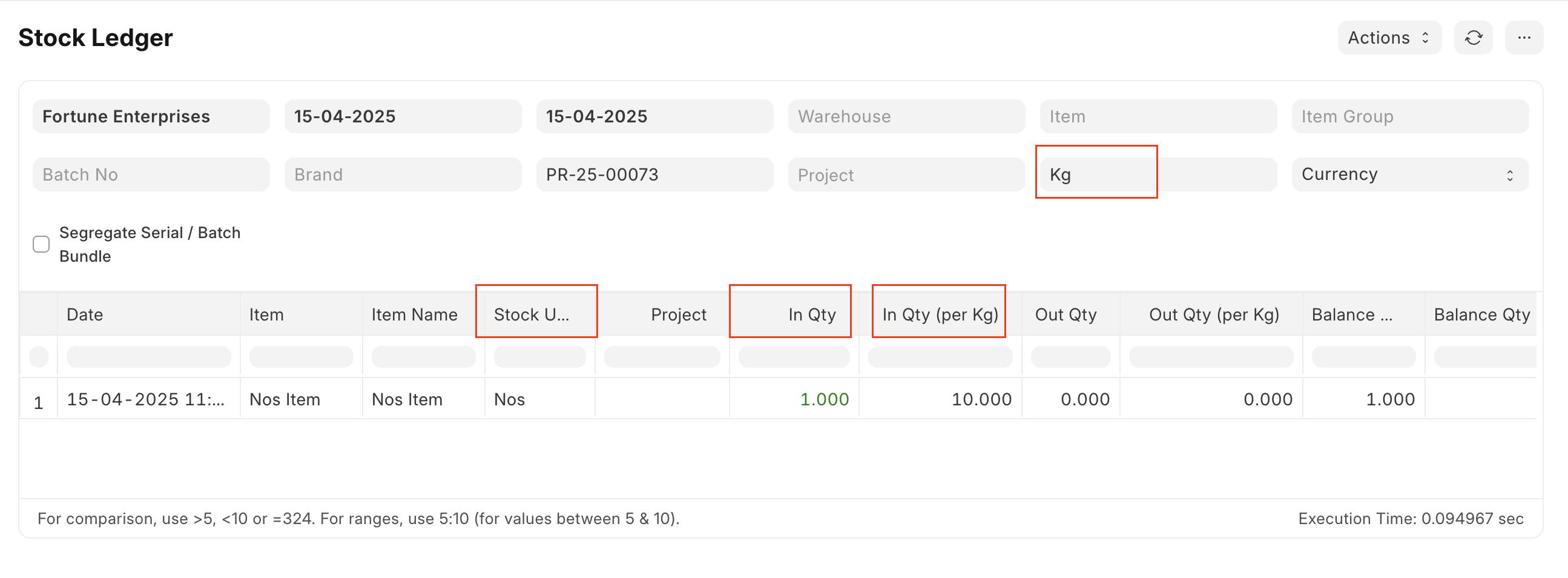
ERPNext does all the calculations for you, based on the ratio you’ve set.
📌 General Note: The two cases above are just examples.
You can apply the same steps for any other UOM combinations your business uses, such as:
Meters ↔ Rolls
Liters ↔ Bottles
Boxes ↔ Units
Or even custom UOMs like Packets, Reels, etc.
Just remember:
🔑 Conversion Factor = How much of the default UOM is equal to 1 of the alternate UOM
Once configured correctly, ERPNext will take care of the rest — showing the right quantities, stock levels, and values automatically in the correct units during every transaction.